This Salesforce to HubSpot migration checklist explains what to fix before moving your CRM data. Understand how to audit Salesforce, deduplicate data, map the fields, maintain attribution, rebuild workflows, prepare for integrations, and validate HubSpot before moving to another system.
TL;DR
- Before you migrate to Salesforce, conduct a Salesforce audit to determine which fields, custom objects, picklists, workflows, and processes are not being used.
- Remove duplicate Salesforce records while keeping the relationships, activity, and business context intact.
- Analyse non-associated contacts and uniformise picklists, multi-select fields, currency, dates, etc.
- Complete Salesforce and HubSpot field mapping plan, particularly for custom objects and custom fields.
- Don’t migrate everything by default; only a certain set of records, fields, workflows, and historical data should be moved.
- Rebuild key workflows, prioritize critical reports, and pre-build all critical integrations before implementing.
- Before completely migrating from Salesforce to HubSpot, make sure to validate records, associations, reporting, attribution, workflows, and integrations.
Switching CRMs may look simple on paper: export data from one platform, import it into another, and start working. In practice, a successful Salesforce to HubSpot migration depends on decisions made before any data moves. Therefore, it’s essential to fix data quality, object inventory, and integration dependencies before migration.
You need to understand how clean your Salesforce instance is, determine which records and processes should move, and configure your migration in the right order. Without this groundwork, problems may not appear on migration day. They often surface weeks later, when a sales representative cannot find a deal’s company or a report no longer matches the numbers in Salesforce.
This checklist explains what to review before migration, what to fix in Salesforce, and how to validate the new CRM before your team fully switches over.
Why Migrations Fail After Go-Live, Not During It

Salesforce to HubSpot migrations often fail after go-live because data can transfer successfully while important relationships, sync settings, and business processes remain incorrectly configured.
For example, if deals sync before companies, deals may arrive in HubSpot without the correct company associations. The issue may only become apparent when sales representatives start using those records or managers compare pipeline reports.
Other problems can include missing contact relationships, incomplete campaign history, broken workflows, and reports that no longer match Salesforce.
The key point: A completed data transfer does not guarantee a successful migration. Prior to making the full transition to HubSpot, verify that records are properly linked and that your team’s critical workflows, integrations, and reports function properly.
Why “Fix It First” Beats “Fix It After”
Addressing issues before migration is more cost-effective because Salesforce will have context that may not exist in HubSpot. If a contact does not have an account, you can see the representative who added it, the deal to which it is linked, and its activity history. When those same connections are passed to HubSpot, you might only have a name and an email, and not have the context that was originally present.
Several HubSpot sync behaviors are also dependent on configuration and sequence, not just data. If you get the setup order wrong, such as turning on opportunity sync before company sync, post-migration data cleanup alone may not resolve the issue. You may need to identify the problem, adjust the sync settings, and run the process again. This can lead to hours of rework that a simple configuration check could have prevented.
You also need to consider team dynamics. Cleaning data while both systems are running means you are working with a moving target. New records may continue to be created in Salesforce while your team is still correcting existing ones. By cleaning the source system first and migrating the updated data, you can reduce the need to repeatedly revisit records as the database continues to change.
The 10-Step Salesforce to HubSpot Migration Checklist
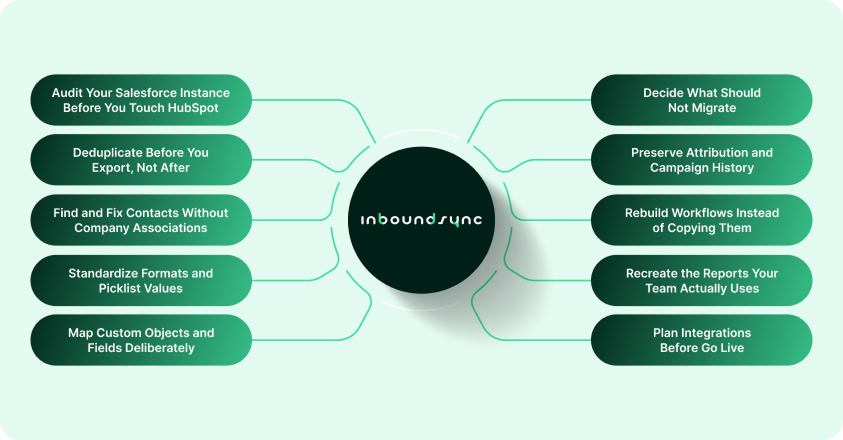
1. Audit Your Salesforce Instance Before You Touch HubSpot
Review the records that you want to export and then conduct a comprehensive evaluation of your Salesforce environment.
Make a List of standard objects, custom objects, custom fields, and picklist values. Determine the business fields that are used, those that have historical value, and those that are no longer needed for current business activities.
Audit field usage statistics and discuss with those teams who use Salesforce. A field that is left unassigned can still have a report, integration, or workflow assigned. Find out what it does before taking it out.
Then, record your active workflows, Process Builder processes, and Salesforce Flows. Document each automation, the teams that rely on it, and whether the process is still needed.
This audit will provide you with a roadmap of what works, what doesn’t, and what can be done.
2. Deduplicate Before You Export, Not After
Duplicate records can create confusion in the new CRM, especially when sales representatives rely on accurate contact histories and company relationships.
Review duplicate contacts, accounts, leads, and other relevant records while they are still in Salesforce. Compare email addresses, company details, record ownership, activity history, and associated opportunities to determine which records should be retained or merged.
Avoid merging records based only on similar names. Two contacts may share a name but represent different people, while records with different names may refer to the same person.
Before merging, confirm which record contains the most accurate information and whether any important history or relationships need to be preserved.
HubSpot provides tools for managing duplicate records after import, but reviewing duplicates in Salesforce first gives your team access to the original context. InboundSync can support the migration process, but decisions about which records are correct should be based on your business data and validation rules.
3. Find and Fix Contacts Without Company Associations
Contacts without account associations can create problems for account-based reporting and sales workflows.
When these contacts move into HubSpot without a company relationship, they may not appear in the company views your sales team relies on. This can make it harder to understand engagement across an account or connect a contact to the right business opportunity.
Before migration, identify contacts that are not associated with an account in Salesforce. Review each record and determine whether it should be linked to an existing account, associated with a newly created account, or intentionally kept as an individual contact.
Do not automatically assign every unassociated contact to a company based on a similar name or email domain. Shared domains, subsidiaries, and individual email addresses can make automatic matching unreliable.
Document any records you can’t confidently match so you can review them after migration.
4. Standardize Formats and Picklist Values
Data formatting issues can affect how information appears in HubSpot and whether it maps correctly to the intended properties.
Review the following areas before exporting your data.
- Picklist values: Compare Salesforce picklist options with the corresponding HubSpot dropdown property options. Differences in spelling, capitalization, spacing, or labels can affect how values are transferred. Test representative records and review the migration results instead of assuming every value will map correctly.
- Multi-select fields: Salesforce and HubSpot may handle multi-select properties differently. Check how selected values are represented and confirm that the destination property supports the information you need to preserve.
- Currency fields: Review how currency values and currency settings will be handled in HubSpot. Do not assume that transferring an amount automatically converts it into your reporting currency. Confirm the expected behavior and reporting requirements with your finance team.
- Dates and formats: Standardize date formats, phone numbers, country values, and other fields that may be interpreted differently between systems.
HubSpot’s Salesforce migration guidance can help you prepare your destination properties before transferring records.
5. Map Custom Objects and Fields Deliberately
Field mapping determines where Salesforce information will appear in HubSpot. It should be planned before the migration begins.
Create a mapping document that includes the Salesforce object, source field, field type, destination HubSpot object, destination property, and any transformation or validation rules.
For standard fields, confirm that the source and destination properties represent the same information. For custom fields, decide whether an existing HubSpot property can be used or whether a new property needs to be created.
Custom objects require particular attention. Confirm that the required object exists in the destination portal and that the migration method supports transferring the object and its relationships. Do not assume every Salesforce custom object has a direct equivalent in HubSpot.
For each custom field, ask whether the information is still used, whether it is required for reporting or automation, and whether it should be transferred in its current form.
InboundSync provides field mapping and filtering options to help configure how data migrates from Salesforce to HubSpot. Explore our Salesforce to HubSpot migration services for a detailed understanding.
6. Decide What Should Not Migrate
Moving every Salesforce record and field may seem like the safest approach, but it can make HubSpot harder to use.
Old fields, outdated picklist values, inactive workflows, and irrelevant records can add clutter to the new CRM. They may also make it harder for employees to identify which information matters.
Review each object and field before migration. Ask whether the information is actively used, supports a current business process, contributes to reporting, or needs to be retained for historical or compliance reasons.
You may decide to migrate active records and essential history while retaining older information in an accessible archive. The right approach depends on your reporting needs, operational requirements, and data retention policies.
Treat this as a business decision rather than a simple data transfer task. A focused HubSpot setup can make it easier for employees to understand the system and use it consistently.
7. Preserve Attribution and Campaign History
Campaign history can be important for understanding how marketing activities contribute to pipeline and revenue.
Before migration, identify which Salesforce campaign records, campaign members, and related opportunity information your reporting depends on. Confirm which information can be transferred through your chosen migration method and which details require a separate process.
Do not assume campaign relationships or historical attribution will automatically appear in HubSpot in the same form.
Create a baseline using a sample of closed won opportunities. Record the campaign interactions and revenue details available in Salesforce, then use those records to validate the corresponding information after migration.
If campaign history is essential to your reporting, document how it will be preserved and how your team will access it in HubSpot.
This preparation helps you identify missing attribution information before Salesforce is decommissioned.
8. Rebuild Workflows Instead of Copying Them
Salesforce workflow rules, Process Builder processes, and Flows do not automatically become equivalent HubSpot workflows.
Start with the automation inventory created during your Salesforce audit. For each process, document its trigger, conditions, actions, dependencies, and business purpose.
Then decide whether it should be rebuilt in HubSpot, redesigned, or retired.
For example, a Salesforce workflow that assigns leads based on territory may need to be recreated using HubSpot properties and workflow conditions. However, if your sales process has changed, reproducing the old automation may introduce unnecessary complexity.
Test each rebuilt workflow with sample records. Confirm it triggers under the right conditions, updates the correct properties, and doesn’t create unintended changes.
The objective is not to reproduce every automation exactly. It is to preserve the business processes your team still needs.
9. Recreate the Reports Your Team Actually Uses
Do not try to recreate every Salesforce dashboard before your team begins using HubSpot.
Start by identifying the reports that sales, marketing, and leadership rely on regularly. These may include pipeline reports, deal forecasts, lead conversion reports, campaign performance, and sales activity reports.
For each report, document the source data, filters, calculation rules, and expected output. Then determine how to recreate the same business view in HubSpot.
Some reports may require different properties or calculation logic because the two CRMs organize information differently. Confirm that the new report measures the same thing before comparing its results with Salesforce.
Prioritize reports that support daily decisions and management reviews. Once these are validated, you can address less frequently used dashboards.
10. Plan Integrations Before Go Live
Salesforce may be connected to several systems that support your business operations. These could include marketing automation platforms, billing systems, customer support software, data warehouses, and reporting tools.
Create an integration inventory before migration. For each connection, document what data it reads or writes, how often it syncs, who owns it, and which business processes depend on it.
Then confirm whether each system has a native HubSpot integration, requires reconfiguration, or needs a replacement.
Pay particular attention to field mappings, authentication, sync direction, and record matching. An integration that worked with Salesforce may not behave the same way when connected to HubSpot.
Test critical integrations before go-live and confirm that records are being created or updated as expected. Assign an owner to monitor integration health after the migration.
Salesforce to HubSpot Concept Mapping
| Salesforce | HubSpot | What to review |
|---|---|---|
| Leads | Contacts | Review lifecycle and qualification logic |
| Accounts | Companies | Check company relationships and hierarchy requirements |
| Contacts | Contacts | Validate associations and identifiers |
| Opportunities | Deals | Map stages, pipelines, values, and probabilities |
| Campaigns | Campaigns and marketing tools | Review historical attribution requirements |
| Custom objects | Custom objects | Map properties and associations deliberately |
| Flows and Process Builder | Workflows | Rebuild business logic rather than copy it |
| Picklists | Dropdown properties | Standardize values before migration |
| Reports | Reports | Recreate business-critical reporting |
Common Migration Mistakes to Avoid
A few mistakes can create problems even when the actual data transfer completes successfully.
- Enabling opportunity sync before company sync: Check the required setup sequence and validate company associations before relying on migrated deals.
- Assuming currency values will convert automatically: Confirm how amounts and currencies are handled in your destination CRM.
- Ignoring opportunity contact roles: Review whether the right contacts are associated with each deal.
- Rebuilding every dashboard at once: Prioritize reports your team needs immediately.
- Switching off Salesforce without validation: Keep a planned comparison period so you can investigate discrepancies.
- Treating migration as a one-time task: Assign ownership for data quality, workflow performance, and integration monitoring after go-live.
How InboundSync Supports the Migration Process
A Salesforce to HubSpot migration involves more than transferring records. Teams need to select the right data, configure field mappings, account for existing records, and review the results before completing the transfer.
InboundSync supports this process through a structured migration flow. Teams connect their source and destination CRMs, select the objects they want to transfer, configure record matching, map fields, and run a sample migration before proceeding with the full transfer.
The sample migration gives teams an opportunity to review how records and fields appear in HubSpot. If the results do not match expectations, they can adjust the mappings and test again before moving the full dataset.
This approach can reduce repetitive manual work while allowing CRM owners to make decisions about data selection, field mapping, and business rules.
For example, standard object mappings may cover common records such as accounts to companies, contacts to contacts, and opportunities to deals. Custom objects and fields need to be reviewed against the capabilities and configuration of the migration method being used.
The goal is to make the transfer process more manageable while keeping important migration decisions under the control of the people who understand the business data.
Validating Before You Switch Off Salesforce
Do not decommission Salesforce as soon as the HubSpot import finishes. Plan a validation period in which your team can compare both systems and confirm that critical business processes work as expected.
During this period, review the following:
- Confirm that deals are associated with the correct companies.
- Check whether contacts are linked to the appropriate deals.
- Compare important reports in Salesforce and HubSpot.
- Validate campaign attribution against the baseline created before migration.
- Test critical workflows and integrations.
- Ask sales representatives to manage real scenarios in HubSpot and report missing information or unexpected behavior.
Use the discrepancies you find to create a final cleanup list. Assign an owner to each issue and confirm that it has been resolved before the old system is fully retired.
The length of the validation period should depend on your data volume, business complexity, integration requirements, and operational risk. The important point is to allow enough time to identify problems while Salesforce is still available for comparison.
The Bottom Line
The details that can disrupt a Salesforce to HubSpot migration are often specific: missing company associations, incomplete contact relationships, inconsistent field values, automation that has not been rebuilt, and reporting that no longer matches business expectations.
Audit Salesforce before moving data. Deduplicate records, resolve unassociated contacts, map fields deliberately, and decide which information is still worth transferring. Rebuild the workflows your team needs, plan integrations ahead of time, and validate the results before switching Salesforce off.
A successful migration is not simply about getting records into HubSpot. It is about giving your team a CRM they can trust, with accurate data, useful reporting, and business processes that work from day one.
FAQs
What should I do before migrating from Salesforce to HubSpot?
Before migrating, audit your Salesforce instance, clean duplicate and incomplete records, review company and contact associations, standardize field values, map Salesforce fields to HubSpot properties, identify required automations and reports, and review integrations. This preparation helps prevent data quality and workflow issues after migration.
Should I clean Salesforce data before migrating to HubSpot?
Yes. Clean and deduplicate your Salesforce data before migration whenever possible. Resolve duplicate records, incomplete contact and company relationships, outdated fields, inconsistent picklist values, and unnecessary records before exporting. Cleaning the source data gives you a more reliable dataset to migrate and reduces post-migration cleanup.
What Salesforce data should I migrate to HubSpot?
You should migrate the Salesforce data your teams still need for active sales, marketing, service, reporting, and historical context. Review objects, fields, campaign history, relationships, and records individually rather than moving everything by default. Older or irrelevant data may be better retained in an accessible archive, depending on your reporting and retention requirements.
How do I validate a Salesforce to HubSpot migration?
Validate the migration by comparing representative records and business-critical reports in both systems. Check company and contact associations, deal relationships, field values, campaign attribution, workflows, integrations, and reporting. Have end users test real scenarios in HubSpot before Salesforce is fully decommissioned.
How long should I keep Salesforce after migrating to HubSpot?
There is no fixed validation period that works for every business. Keep Salesforce available long enough to compare critical data, reports, workflows, and integrations and resolve discrepancies. The required period depends on your data volume, business complexity, integrations, and operational risk.