
TL;DR
- HubSpot Salesforce field mapping connects corresponding properties and determines how information moves between both CRM platforms.
- Map Salesforce Leads and Contacts to HubSpot Contacts, Accounts to Companies, and Opportunities to Deals.
- Check field type compatibility and align dropdown values before mapping standard and custom fields.
- Define sync rules and field ownership to prevent unwanted overwrites and conflicting updates.
- Validate associations between contacts, companies, deals, and custom objects before enabling full synchronization.
HubSpot Salesforce field mapping determines how customer and sales information moves between the two CRM platforms. Correct mapping helps teams maintain consistent records, avoid missing information, and preserve relationships between contacts, companies, and deals.
However, the process involves more than connecting fields with similar names. Businesses must align CRM objects, check property compatibility, define synchronization rules, and ensure that related records remain connected.
Whether you are setting up a new HubSpot and Salesforce integration or planning a HubSpot to Salesforce migration, a structured mapping strategy helps protect data accuracy. This guide explains how to map objects, standard and custom fields, and associations correctly.
What Is HubSpot Salesforce Field Mapping?
Field mapping connects HubSpot properties with corresponding Salesforce fields, defining how information is shared and updated between both platforms. For example, a sales representative may update a contact’s job title in Salesforce, which can sync to HubSpot based on the selected rule. However, Salesforce uses Leads, Contacts, Accounts, and Opportunities, while HubSpot uses Contacts, Companies, and Deals.
Businesses must align these objects before mapping individual fields. During a platform transition, Salesforce to HubSpot migration also requires careful planning of field relationships, object structures, and record matching.
How Do You Map Salesforce and HubSpot Objects?
Start by matching Salesforce objects with their corresponding HubSpot objects to ensure records are transferred and synchronized correctly. The standard mapping follows four key relationships:
- Leads: Salesforce Leads map to HubSpot Contacts, carrying prospect details, lead status, and qualification information.
- Contacts: Salesforce Contacts map to HubSpot Contacts, including names, email addresses, phone numbers, and ownership details.
- Accounts: Salesforce Accounts map to HubSpot Companies, preserving company names, domains, account types, and organizational details.
- Opportunities: Salesforce Opportunities map to HubSpot Deals, including deal names, amounts, close dates, and sales stages.
Salesforce Lead conversion requires additional consideration. A converted Lead may become associated with an existing or new Contact and Account. These relationships should be maintained during integration or migration to prevent disconnected or duplicate records.
For information that does not fit standard CRM objects, businesses can create HubSpot custom objects. These represent specific business entities with their own properties and relationships. Create the required custom object in HubSpot before configuring its synchronization with Salesforce.
How Do You Map Standard and Custom Fields in HubSpot and Salesforce?
After aligning CRM objects, identify the fields that need to be synchronized. Create a mapping document that lists each Salesforce field, its corresponding HubSpot property, field type, business purpose, and sync rule.
Standard fields are generally easier to map because both platforms offer commonly used properties. Custom fields require additional checks because their names, data types, and dropdown values may differ.
Follow these practices to ensure accurate field mapping:
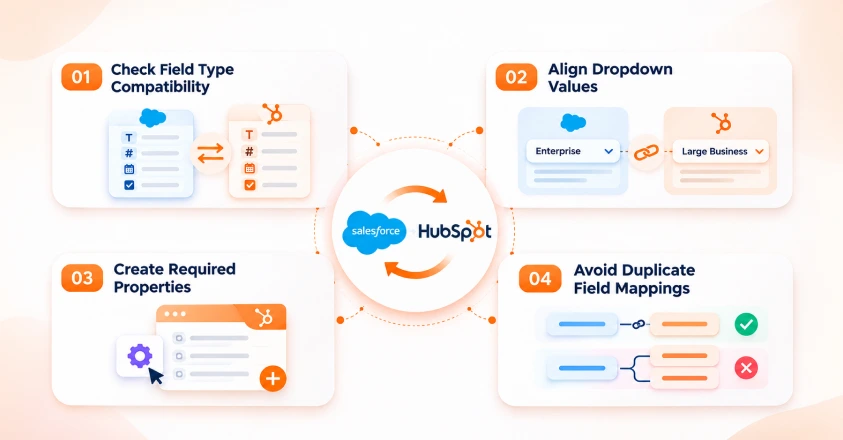
1. Check Field Type Compatibility
Match fields with compatible data types. For example, a Salesforce picklist should map to a compatible HubSpot dropdown property. Similarly, checkbox, number, date, and text fields must have corresponding compatible property types.
2. Align Dropdown Values
Ensure both platforms use consistent dropdown options. If Salesforce uses “Enterprise” while HubSpot uses “Large Business,” define how these values should correspond before enabling synchronization.
3. Create Required Properties
Create missing HubSpot properties before configuring field mappings. Also, verify that the property type supports synchronization. For example, HubSpot user-type custom properties cannot be mapped to Salesforce fields.
4. Avoid Duplicate Field Mappings
Avoid mapping one HubSpot property to multiple Salesforce fields or duplicating existing standard mappings. Such configurations can cause conflicting updates, unexpected overwrites, and synchronization issues.
HubSpot provides a field mapping reference that lists compatible field types and explains how to configure property mappings.
How Do You Set the Right Sync Rules in HubSpot and Salesforce?
HubSpot and Salesforce sync rules determine which platform controls a field’s value and how updates are shared. Choosing the right rule helps prevent conflicting updates and keeps CRM data consistent.
HubSpot offers four main field synchronization options:
- Two-way sync: Shares updates between both platforms, with the most recent value generally taking priority.
- Prefer Salesforce unless blank: Uses Salesforce as the preferred source but allows HubSpot to update an empty Salesforce field.
- Always use Salesforce: Makes Salesforce the source of truth, allowing its values to overwrite corresponding HubSpot values.
- Don’t sync: Prevents the selected field from sharing information between the platforms.
For example, a business may use Salesforce to manage opportunity amounts and sales stages while HubSpot manages marketing engagement and nurture status. This allows each team to maintain ownership of its relevant data.
Before enabling synchronization, define which platform controls important fields such as customer ownership, revenue figures, and lead status.
One important consideration: New field mappings do not automatically update all existing records. Businesses may need to manually resync or bulk resync records to apply the mappings.
How Do You Preserve Associations Between CRM Records?
Associations connect individual CRM records and provide the context that field values alone cannot. A contact may belong to a company, participate in multiple deals, and have relationships with other records.
Mapping contact and company fields does not automatically guarantee that every relationship is configured correctly. For example, a company may have several contacts associated with different opportunities. If these relationships are missing, teams may see accurate individual records but an incomplete customer history.
To preserve associations:
- Connect Salesforce Accounts with their corresponding HubSpot Companies.
- Associate contacts with the correct companies.
- Link opportunities with the relevant companies and contacts.
- Review primary associations and association labels where applicable.
- Check relationships between custom objects and their associated records.
Custom object synchronization requires additional configuration. HubSpot allows businesses to select association settings, including the primary association field, association label, and sync direction.
One important consideration is that Salesforce lookup fields on custom objects cannot be configured as ordinary field mappings. Their relationship data must be managed through association settings instead. Associations can also be synchronized only between objects that are already syncing with HubSpot.
Refer to HubSpot’s custom object synchronization guide when configuring these relationships.
Steps to Configure and Validate HubSpot Salesforce Field Mapping
A structured implementation process helps identify errors before they affect live CRM records.
1. Audit both CRM environments
Review existing objects, properties, custom fields, and associations in HubSpot and Salesforce. Identify which information is actively used, which fields are redundant, and which records need to be synchronized.
2. Prepare a field mapping document
Create a source-to-destination mapping sheet. Include field names, data types, dropdown values, ownership, and sync rules. Highlight fields that require transformation before synchronization.
3. Configure object synchronization
Connect Salesforce through HubSpot’s connected apps settings. Navigate to Integrations, select Connected Apps, and open Salesforce. Use the Data sync settings to configure the relevant object synchronization.
4. Create custom properties and associations
Create missing HubSpot properties and custom objects before configuring their mappings. Confirm that the required association settings are available and that the destination records can maintain the intended relationships.
5. Apply sync rules
Select the appropriate sync direction and ownership rule for each field. Pay particular attention to customer ownership, sales stages, revenue information, and other fields that should not be overwritten without approval.
6. Test representative records
Run a controlled test with sample contacts, companies, deals, and custom objects. Check whether values move correctly, associations remain intact, and updates follow the selected rules.
7. Review errors before full synchronization
Inspect synchronization errors and warnings. Correct incompatible field types, missing values, duplicate mappings, and association issues before expanding the process to the complete database.
Testing is especially important when existing records contain different values in both systems. Depending on the selected sync rule, the first synchronization may use Salesforce’s current value as the baseline and overwrite a more recent HubSpot value.
Common HubSpot Salesforce Mapping Mistakes to Avoid
Even when the mapping process appears straightforward, a few configuration mistakes can affect data reliability.
Mapping incompatible field types: Connecting fields with incompatible data types can prevent synchronization. Verify compatibility before saving each mapping.
Ignoring dropdown differences: Different option values can result in missing or inconsistent information. Align dropdown options before enabling synchronization.
Overlooking associations: Correctly mapped contacts and companies do not guarantee that their relationships are synchronized. Validate associations separately.
Applying unclear sync rules: Allowing both platforms to overwrite important fields without defining ownership can create conflicting updates.
Ignoring duplicate records: Poor record matching can create duplicate contacts or companies. Review identifiers and matching rules before moving data. Read more about how to prevent duplicate records during a HubSpot migration.
Addressing these issues during configuration is easier than correcting them after they affect thousands of CRM records.
How InboundSync Helps With HubSpot and Salesforce Data Mapping
HubSpot Salesforce field mapping requires an understanding of both CRM structures, data relationships, and business-specific requirements. InboundSync helps businesses plan and manage CRM migration activities while maintaining data accuracy throughout the transition.
Its migration support can include:
- Object mapping: Align Salesforce Leads, Contacts, Accounts, and Opportunities with their corresponding HubSpot objects.
- Custom field mapping: Configure standard and custom properties according to field types and business requirements.
- Record matching: Identify existing records and establish matching rules to reduce duplicate creation.
- Association mapping: Preserve relationships between contacts, companies, deals, and supported custom objects.
- Sample migration and validation: Test mappings with selected records, review discrepancies, and make adjustments before the complete migration.
InboundSync also supports automated mapping capabilities, record filtering, custom object creation, and sample migration options to help businesses review their data before proceeding with a full migration.
Planning a HubSpot Migration? Start With Clean, Reliable CRM Data.
Work with InboundSync to plan your CRM migration, configure field mappings, and maintain important record relationships throughout the transition.
Final Takeaway
Accurate HubSpot Salesforce field mapping requires more than matching fields with similar names. Businesses need to align objects, verify property compatibility, define clear sync rules, and preserve associations between related records.
A documented mapping strategy and controlled testing process can help prevent data inconsistencies and synchronization errors. Whether you are implementing a new integration or planning a HubSpot to Salesforce migration, getting these details right helps both platforms maintain reliable customer information.
FAQs
What is HubSpot Salesforce field mapping?
HubSpot Salesforce field mapping connects corresponding properties between the two CRM platforms. It determines how information such as contact details, company information, deal amounts, and custom fields is synchronized.
Can HubSpot sync custom fields with Salesforce?
Yes. HubSpot supports custom field mapping when the selected property and Salesforce field types are compatible. Businesses must create the required properties and configure the appropriate sync rules.
How do I map Salesforce Accounts to HubSpot Companies?
Salesforce Accounts generally correspond to HubSpot Companies. Configure company synchronization, map relevant account fields to company properties, and verify that associated contacts and other relationships are maintained.
Can HubSpot and Salesforce sync associations?
Yes. Supported associations can be synchronized between the platforms. The available settings depend on the objects being synchronized and the integration configuration. Custom object associations can include primary association fields, labels, and sync directions
What happens when HubSpot and Salesforce have different field values?
The selected sync rule determines which value takes priority. Depending on the configuration, the latest value or the value from the preferred platform may be retained.