Merging two HubSpot portals requires more than transferring CRM records. Learn how to audit and clean data, map properties, preserve associations, manage duplicates, rebuild workflows and integrations, and validate the destination portal to ensure a reliable, consistent CRM experience after consolidation.
TL;DR
- Audit both HubSpot portals to identify the records, assets, and data that need to move.
- Clean existing data and define rules for matching records and preventing duplicates.
- Map properties, pipelines, and lifecycle stages before migrating data.
- Preserve record associations and relevant activity history, then rebuild workflows, reports, and integrations.
- Test the migration, validate data accuracy, and retain the source portal until consolidation is confirmed.
Combining two HubSpot portals requires more than transferring contacts and companies into one account. You need to reconcile existing records, preserve relationships between CRM objects, map properties correctly, and ensure that essential workflows, reports, and integrations continue to support business operations.
The safest way to merge HubSpot portals is to select a destination account, audit both portals, clean and map the data, migrate records in controlled stages, and validate the results before retiring the source portal.
Businesses commonly consolidate HubSpot portals after acquisitions, mergers, organizational restructuring, or decisions to bring separate sales and marketing teams onto one CRM platform. Without proper planning, however, consolidation can introduce duplicate contacts, inconsistent property values, disconnected deal histories, and broken automation.
This guide explains how to prepare for HubSpot portal consolidation, migrate records safely, prevent duplicates, and validate the destination portal before making it the primary system.
How to Prepare Two HubSpot Portals for Consolidation
Before migrating data, establish what needs to move, which portal will become the primary system, and how the combined CRM should operate. This preparation helps prevent avoidable errors and reduces the need for extensive corrections after migration.
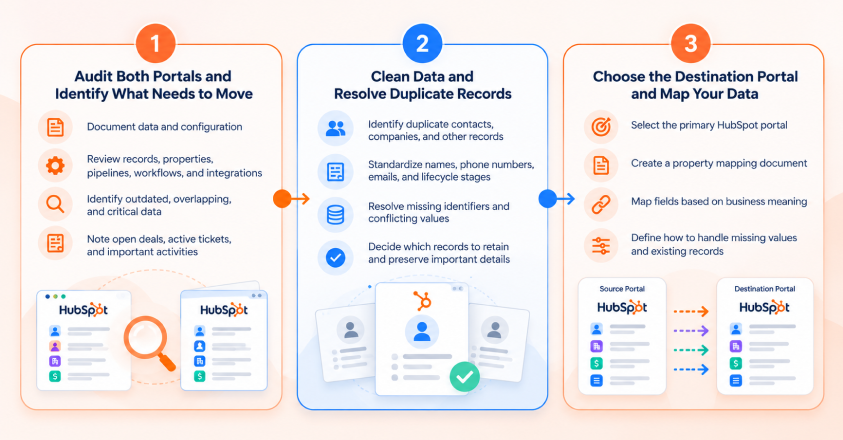
Audit Both Portals and Identify What Needs to Move
Start by documenting the data and configuration in each HubSpot portal. Record the number of contacts, companies, deals, tickets, custom objects, and other relevant records. Identify outdated information, overlapping records, and business-critical data that must be retained.
Review existing properties, pipelines, workflows, reports, lists, forms, integrations, and user permissions. This inventory helps distinguish the data that needs to be migrated from the assets that require reconfiguration or can be retired.
Pay particular attention to open deals, active support tickets, ongoing sales conversations, and records with important historical activities. These may require additional validation to ensure that business teams can continue working without losing context.
Clean Data and Resolve Duplicate Records
Clean the source data before migration rather than relying on the destination portal to resolve every conflict.
Identify duplicate contacts, companies, and other records within each account. Standardize inconsistent values, such as company names, phone numbers, email addresses, and lifecycle stages. Review missing identifiers and resolve conflicting property values wherever possible.
For example, one portal might contain a company named “ABC Technologies,” while the other lists “ABC Technologies Pvt. Ltd.” These records may represent the same organization, but the migration team should verify their identity before combining the information.
Document which records should be retained when duplicates are confirmed. Preserve important customer details, relevant activities, and business relationships rather than selecting records solely because they contain more populated fields.
Choose the Destination Portal and Map Your Data
Select the portal that will serve as the primary CRM after consolidation. Consider its subscription, existing configuration, integrations, reporting requirements, and suitability for the combined business.
Next, create a property mapping document that connects source properties to their corresponding destination properties. For example, the two portals might use different property names for customer segments, lead sources, or lifecycle stages. Map these fields according to their business meaning, not just their names.
Document how the migration should handle missing values, conflicting information, custom properties, and records that already exist in the destination. If source record IDs are needed for reconciliation, preserve them in suitable reference properties. A source portal’s record ID is not automatically the matching record ID in the destination portal.
Agree on these rules before the first import so that the migration team can apply them consistently.
8 Steps to Merge Two HubSpot Portals Without Creating a Data Mess
Once the preparation is complete, follow a controlled migration process. Each step should have clear matching rules and validation checks so that issues can be identified before they affect the entire dataset.
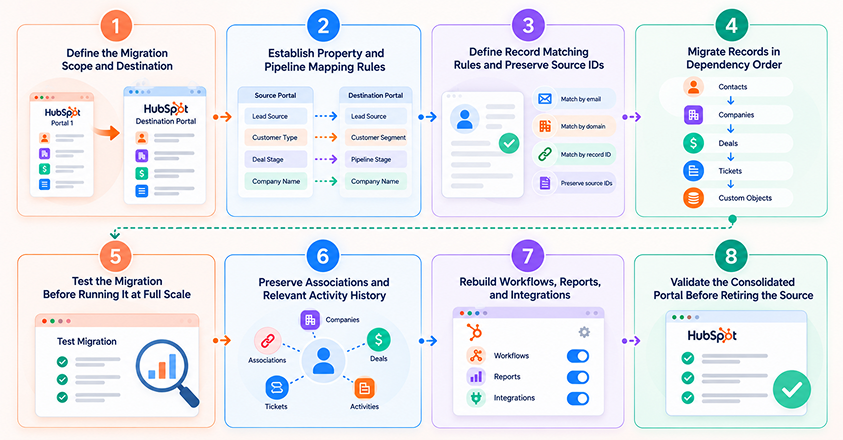
1. Define the Migration Scope and Destination
Confirm which portal will become the primary system and establish exactly what the migration includes.
Decide whether to migrate all records or only those required for ongoing operations. Determine how much historical activity to retain, which custom objects to include, and which workflows, reports, and marketing assets need to be recreated.
Document the decisions, exclusions, and dependencies. A clearly defined scope helps prevent unnecessary data transfers and reduces rework when teams discover that certain records or assets were overlooked.
2. Establish Property and Pipeline Mapping Rules
Before importing records, ensure that the destination portal can accommodate the data coming from both accounts.
Create or update the required properties and map their source equivalents. Align dropdown values, lifecycle stages, lead statuses, deal pipelines, deal stages, and ownership rules.
For example, one portal might use “Qualified Lead” while the other uses “Sales Qualified.” Determine whether these labels represent the same business stage or require different treatment. Simply importing the values without resolving their meaning can create inconsistent reporting.
Also, define how to handle fields that exist in only one portal. This prevents important information from being discarded or imported into inappropriate properties.
3. Define Record Matching Rules and Preserve Source IDs
Records from both portals may represent the same person or organization. Establish how the migration will identify existing records before importing data.
HubSpot supports contact deduplication using email addresses and company deduplication using primary company domains in supported scenarios. Imports can also use Record IDs or eligible unique-value properties to identify records for matching or updating.
However, these mechanisms do not identify every possible duplicate. A contact may have different email addresses in the two portals, while a company may have different names or domains. Such cases require additional review.
Create a source reference property when needed to retain the original record ID or identify the source portal. This makes it easier to trace migrated records, investigate discrepancies, and reconcile the results.
Also, define how contacts without email addresses and other records without reliable identifiers will be handled.
For additional guidance, refer to HubSpot’s documentation on deduplicating records.
4. Migrate Records in Dependency Order
Plan the migration sequence around the relationships between CRM objects. Companies and contacts generally need to be available before dependent deals, tickets, and associations can be connected correctly.
Depending on the migration method and requirements, the sequence may include:
- Companies and contacts.
- Deals and tickets.
- Custom objects and their relationships.
- Relevant activities and historical records.
- Associations between the migrated objects.
Use supported HubSpot imports, APIs, or a specialized migration application based on the complexity of the project. A straightforward migration may work with native imports, while larger projects involving complex associations or extensive historical data may require a more tailored approach.
Do not assume that matching record names will automatically preserve relationships between portals. The migration process needs an explicit method for connecting each source record to the correct destination record.
HubSpot’s guide to importing multiple objects and their associations explains the supported import process.
5. Test the Migration Before Running It at Full Scale
Start with a small, representative dataset rather than importing everything at once. Include records that already exist in the destination, records with missing information, and records with multiple associations.
After the test import, check:
- Whether existing records were updated or new records were created as expected.
- Whether property values were imported into the correct fields.
- Whether contacts, companies, and deals remain properly associated.
- Whether import errors or unexpected duplicates appeared.
- Whether a repeated test import creates unwanted copies.
Review the results and correct the mapping or matching rules before proceeding. Testing is particularly important when the two portals use different property structures or contain overlapping customer records.
Once the test passes, migrate the remaining data in controlled batches. Track completed batches and review import results after each one so that errors can be isolated and corrected without repeating the entire migration.
6. Preserve Associations and Relevant Activity History
CRM records are valuable not only because of their individual fields, but also because of their relationships and historical context.
A contact may be associated with a company, multiple deals, sales activities, and support tickets. If these relationships are not preserved, sales and service teams may lose visibility into the customer’s history.
Use an association mapping plan to connect source records with their corresponding destination records. Verify that each relationship points to the intended record after migration.
Pay particular attention to meetings, calls, notes, tasks, and other activities that teams need for ongoing customer management. The available migration options vary by activity type and method. Some activities can be imported, while others may require a different approach or may not be transferable in the same way.
Validate important historical interactions before considering this stage complete. Do not assume that a successful CRM record import guarantees that every activity has transferred.
7. Rebuild Workflows, Reports, and Integrations
Transferring CRM records does not automatically reproduce the operational setup of the source portal. Workflows, reports, forms, lists, integrations, and other assets may need to be recreated or reconfigured.
Start with the assets that directly support business-critical processes.
Workflows and Automation: Review enrollment criteria, assignment rules, workflow actions, and dependencies on properties or lists. Rebuild automation using the destination portal’s configuration, and test it before enabling it for normal operations.
Reports and Dashboards: Verify that reports use the correct destination properties, pipelines, and records. Compare important metrics with the expected results and investigate discrepancies caused by changed field definitions or migrated data.
Integrations: Review connected applications, authentication, synchronization rules, property mappings, and references to source portal record IDs. Update the configuration wherever required to ensure that external systems communicate with the destination portal.
Forms and Marketing Assets: Determine which forms, lists, email templates, landing pages, and tracking configurations must be retained. Check that the destination portal supports the required functionality and settings.
Users and Permissions: Review user access, team ownership, and data permissions so that employees can access the records and tools they need.
Avoid activating automation while large-scale data imports are still in progress. Depending on the workflow configuration, newly imported records may trigger emails, assignments, or property updates before the migration is complete. Test critical workflows and integrations in a controlled manner before resuming normal operations.
Not every asset needs to be transferred. Some may be redundant after consolidation, while others may benefit from redesign. Retain what supports the combined business rather than recreating every element from both portals without review.
8. Validate the Consolidated Portal Before Retiring the Source
The migration is not complete simply because the import finishes successfully. Validate the destination portal to confirm that its data is accurate, its relationships are intact, and its business processes work as expected.
Compare source and destination record counts, accounting for records intentionally excluded, merged, or updated. Investigate unexpected differences rather than assuming that every discrepancy is an error.
Check the following before approving the migration:
- Contacts, companies, deals, and tickets contain the expected property values.
- Important associations point to the correct destination records.
- Relevant historical activities remain accessible where they were migrated.
- Ownership, lifecycle stages, and deal pipeline information are correct.
- Critical workflows, reports, and integrations function as intended.
- Import errors and unresolved duplicate candidates have been reviewed.
Ask representatives from sales, marketing, and customer service to test their common tasks in the destination portal. Their feedback can reveal problems that record counts alone will not identify.
Keep the source portal available during a defined validation period. Retire it only after critical discrepancies have been resolved, and stakeholders approve the consolidated environment. This provides a reference for investigating issues and reduces the risk of losing access to important information prematurely.
How to Fix HubSpot Duplicate Contacts After Migration
Even with careful planning, some duplicate contacts may remain after portal consolidation. These can arise when records have different email addresses, incomplete identifiers, or inconsistent information that prevented reliable matching during import.
HubSpot’s Manage duplicates tool can help identify and review suggested duplicate records. Use it to investigate potential matches rather than automatically merging every suggestion.
- Open the contacts or companies index and access Manage duplicates, where available.
- Compare the suggested records using names, email addresses, company information, and activity history.
- Confirm whether the records represent the same person or organization.
- Select the primary record carefully, considering which information and associations must be retained.
- Merge confirmed duplicates and review the resulting record and its relationships.
You can learn more from HubSpot’s guide to merging records.
Merging records can affect property values and associations, and merges cannot simply be undone through a standard reversal action. Review each pair carefully before confirming.
If many duplicates appear after migration, investigate the original matching rules and import process. Post-migration cleanup should resolve exceptions, not replace the duplicate prevention measures established before the migration.
How InboundSync Helps With HubSpot Portal Consolidation
Consolidating HubSpot portals requires coordination across data preparation, migration execution, and post-migration validation. InboundSync can help businesses structure this process around their CRM requirements, data quality goals, and operational priorities.
Support may include auditing both portals, identifying overlapping records, mapping properties, defining record matching rules, planning the migration sequence, and validating associations between contacts, companies, deals, and relevant activities.
The process can also include reviewing workflows, reports, and integrations that need to be recreated or reconfigured in the destination portal. This helps ensure that consolidation addresses operational dependencies rather than focusing exclusively on moving records.
The goal is to establish one reliable CRM environment without carrying unnecessary duplicates, inconsistent properties, or broken relationships into the consolidated system.
Turn Portal Consolidation Into a Cleaner CRM
Merging two HubSpot portals is a structured data migration and operational consolidation project, not simply a record import. Success depends on cleaning the source data, defining matching rules, preserving associations, and validating the destination portal.
A controlled migration process helps reduce duplicate records, protect important customer information, and give sales, marketing, and service teams a dependable CRM environment. Keeping the source portal available until validation is complete adds another layer of protection against avoidable data loss.
FAQs
Can You Merge Two HubSpot Portals Into One?
Businesses can consolidate selected data from two HubSpot portals into one through a planned migration. However, HubSpot does not offer a universal one-click function that merges two entire portals. The process may involve imports, APIs, migration applications, and rebuilding or reconfiguring assets.
What Data Can You Migrate Between HubSpot Portals?
Depending on the migration method, supported data may include contacts, companies, deals, tickets, custom objects, properties, activities, and record associations. Workflows, reports, integrations, and marketing assets may require separate configuration or recreation. Confirm the available migration options for each asset before starting.
How Do You Verify a HubSpot Portal Migration Is Complete?
Compare source and destination record counts, investigate import errors, verify important property values and associations, and test critical workflows and integrations. Have business teams validate their daily processes before retiring the source portal.
How Long Does It Take to Merge Two HubSpot Portals?
The timeline depends on the volume of CRM data, the number of duplicate records, the complexity of associations, and the workflows and integrations that need to be reconfigured. A straightforward migration may take less time, while a complex consolidation requires additional testing, data cleanup, and validation.
Should You Keep the Original HubSpot Portal After Migration?
Yes. Keep the source portal accessible until the migrated data, record associations, workflows, reports, and integrations have been validated. Confirm that business teams can work effectively in the destination portal and resolve outstanding discrepancies before deciding when to retire the original account.