
Duplicate records in a HubSpot migration usually come from missing identifiers, unclean source data, and unmatched imports. This guide explains how HubSpot detects duplicates, six steps to prevent them, how to merge duplicates afterward, and how InboundSync supports reliable migrations.
Duplicates in a HubSpot migration come from existing source duplicates, missing identifiers, wrong field mapping, and repeated imports.
HubSpot matches contacts by email and companies by domain name, and supports Record IDs and unique value properties on import.
Audit and clean the source CRM, and define matching rules for each object before importing.
Map unique identifiers, including legacy CRM IDs, and test with a sample dataset before the full run.
Log every import so repeated runs update existing records instead of creating new ones.
Merging cannot be undone, so review duplicate pairs and verify associations after migration
You prevent duplicate records during a HubSpot migration by giving every record a reliable unique identifier, cleaning duplicates in your old CRM before export, and testing the import before running it at full scale. HubSpot can only match what it can identify, so the quality of your import file decides how clean your portal will be.
This guide explains why duplicate records occur during a HubSpot migration, how HubSpot handles duplicate detection, and which practices help prevent and resolve duplicates throughout the migration process.
Why Do Duplicate Records Occur During a HubSpot Migration?
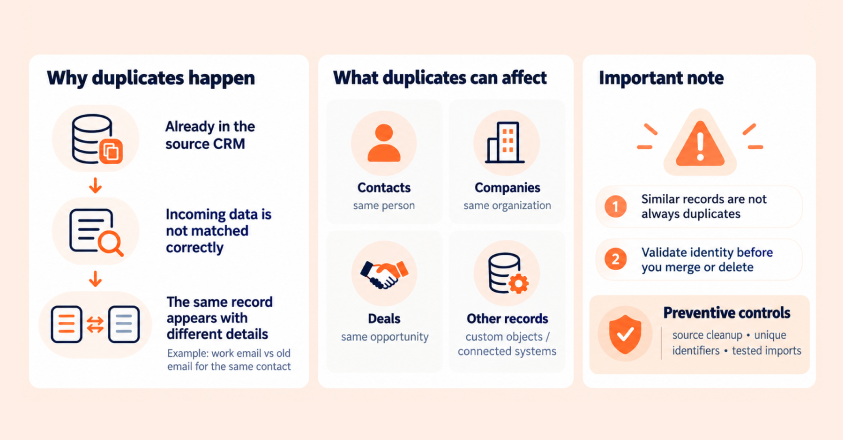
Duplicate records occur when a CRM holds multiple records for the same person, company, or business transaction. In a HubSpot migration, they either come across from the source system or get created when incoming data isn’t matched correctly to existing records.
A duplicate is two or more entries that represent the same real-world entity. For example, a sales team may have one contact record with a work email and another with an outdated email for the same prospect.
Duplicates can affect several objects:
Contacts: Multiple records for the same person.
Companies: Separate records for the same organization.
Deals: Multiple records for the same opportunity.
Other Records: Repeated entries in custom objects or connected systems, depending on your data model.
Not every similar record is a duplicate. Two contacts can share a name, and one company can operate under several domains. Validate record identity before you merge or delete anything.
Knowing these causes shows you where to put preventive controls, such as source cleanup, unique identifiers, and tested imports.
Common Causes of Duplicate Records During Migration
Duplicate records in the source CRM: The existing system may already contain duplicate contacts or companies created through manual entry, lead generation tools, or disconnected integrations. Migrating these records without cleaning them first transfers the problem into HubSpot.
Missing or inconsistent unique identifiers: Email addresses, company domains, and legacy CRM IDs help identify records. When these identifiers are missing, outdated, or inconsistent, matching becomes more difficult.
Incorrect field mapping during migration: If source fields are mapped to the wrong HubSpot properties, important matching information may not be available during import. Incorrect mappings can also create inconsistent records that are harder to reconcile later.
Existing records in the destination HubSpot portal: A company may already have contacts or companies in HubSpot from previous campaigns, manual data entry, or connected applications. Importing the same entities without matching them to existing records can create duplicates.
Repeated migration runs or overlapping imports: Reimporting a file after an error or running multiple migration jobs without tracking completed records can create repeated entries, particularly when the import does not use suitable identifiers.
Differences in data formats and naming conventions: Variations in company names, phone numbers, email addresses, and other fields can make equivalent records appear different. For example, a company may be recorded as “ABC Technologies” in one system and “ABC Technologies Pvt. Ltd.” in another.
API integrations and CRM sync conflicts: Connected applications may create records independently of the migration process. If multiple systems create or synchronize the same contacts without consistent matching rules, duplicates can appear even after the initial import is complete.
What Problems Can Duplicate Records Cause After Migration?
Duplicate records can affect more than CRM cleanliness. They can change how teams interpret customer information and how automated processes operate.
1. Inaccurate CRM Reports and Revenue Forecasts
Duplicate contacts and companies can inflate record counts and distort segmentation. Duplicate deals can create an inaccurate view of pipeline value if the same opportunity is counted more than once.
These issues can reduce confidence in dashboards, campaign performance reports, conversion metrics, and revenue forecasts.
2. Fragmented Contact Histories and Company Records
When information is spread across multiple records, sales representatives may see only part of a customer's history. One contact record may contain emails and meetings, while another contains the latest deal information.
This fragmentation makes it harder for teams to understand previous interactions and maintain consistent communication.
3. Repeated Marketing Emails and Sales Follow-Ups
Duplicate contacts may qualify separately for marketing lists or workflows. Depending on subscription settings, suppression rules, and workflow logic, this can lead to repeated communications or redundant follow-up tasks.
Duplicate records can also complicate lead assignment if separate entries are routed to different sales representatives.
4. Workflow Errors and Integration Conflicts
Workflows and integrations depend on accurate records and consistent property values. Duplicates can trigger repeated actions, create conflicting updates, or complicate synchronization between HubSpot and other systems.
For example, two records representing the same prospect may receive different lifecycle stages or be assigned to different owners, affecting reporting and follow-up processes.
5. Poor HubSpot Data Quality and User Adoption
When users repeatedly encounter duplicate records, they may lose confidence in the CRM and create spreadsheets or manual workarounds. This reduces data consistency and makes future reporting and automation more difficult.
Preventing duplicates during migration therefore supports both data quality and long-term CRM adoption.
6 Steps to Prevent Duplicate Records During a HubSpot Migration
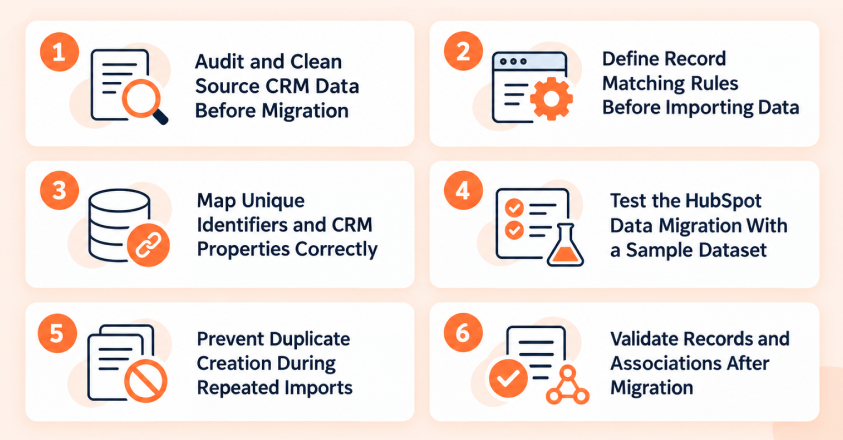
Duplicate prevention should begin before the first import. The following practices help businesses reduce the risk of creating duplicates and preserve the relationships between migrated records.
1. Audit and Clean Source CRM Data Before Migration
Start by reviewing the source CRM for duplicate contacts, companies, and deals. Identify records that share email addresses, company domains, legacy IDs, or other relevant attributes.
Next, determine which records should be retained, merged, updated, or excluded. Establish rules for resolving conflicts, such as choosing the most recently verified email address or preserving the record with the most complete interaction history.
Data cleanup should also include standardizing formats, removing obsolete records where appropriate, and reviewing missing identifiers. Keep a record of the changes so that the migration team can trace how source data was prepared.
Avoid merging records solely because they look similar. Ambiguous matches should be reviewed before any irreversible changes are made.
2. Define Record Matching Rules Before Importing Data
Create matching rules for each CRM object before beginning the migration.
For contacts, email addresses and source CRM IDs can help establish identity. For companies, domain names and validated organization identifiers may be useful. For deals, use source deal IDs and relevant transaction details rather than relying on deal names alone.
Define how the migration will handle records with missing identifiers, conflicting values, or multiple potential matches. Decide which cases can be processed automatically and which require manual review.
Documenting these rules helps keep matching consistent across migration batches and reduces the likelihood of creating new duplicates.
3. Map Unique Identifiers and CRM Properties Correctly
Field mapping determines how information from the source CRM is transferred into HubSpot. Incorrect mapping can prevent records from matching properly or leave important data unavailable for reconciliation.
Create a field mapping document that specifies the source field, destination HubSpot property, data format, and purpose of each important field.
Preserve legacy CRM record IDs in suitable HubSpot properties when needed for matching, troubleshooting, or reconciliation. For Salesforce migrations, retaining Salesforce record IDs can be particularly useful when comparing source records with their migrated counterparts.
Before importing, confirm that the mapped identifiers are populated consistently and that the chosen import method supports the intended matching behavior.
4. Test the HubSpot Data Migration With a Sample Dataset
Do not begin with the full dataset. First, run a controlled test using representative contacts, companies, deals, and records with known edge cases.
Include records that already exist in HubSpot, records with missing identifiers, and records with different formatting conventions. Check whether HubSpot creates new records or updates existing ones as intended.
After the test import, verify record counts, property values, associations, and import errors. Review any unexpected duplicates and correct the mapping or matching rules before proceeding.
A sample migration helps uncover problems when they are easier to fix and reduces the risk of repeating mistakes across thousands of records.
5. Prevent Duplicate Creation During Repeated Imports
Migration projects may require multiple imports as teams correct data or move records in stages. Without proper tracking, these repeated imports can introduce duplicates.
Maintain an import log that records the file, object type, date, record range, identifiers used, and import outcome. Before rerunning a failed import, determine which records were already created or updated.
Where supported, use stable record identifiers to update existing records rather than treating every migration batch as new data. Coordinate migration activities with teams managing integrations and manual imports to avoid overlapping record creation.
6. Validate Records and Associations After Migration
Once the data has been imported, compare the results with the source CRM and investigate discrepancies.
Check whether contacts are associated with the correct companies and deals. Verify record ownership, important property values, and relevant historical information. Confirm that the number of imported, updated, skipped, and failed records aligns with expectations.
Also review workflows and integrations that depend on the migrated data. Validation should confirm not only that records exist, but also that they are correctly matched, connected, and usable by the business.
How to Identify and Fix Duplicate Records in HubSpot After Migration
Even with careful planning, some duplicate records may remain after a migration. HubSpot provides tools to identify potential duplicates and merge records, but businesses should review the results before making changes.
Find Duplicate Contacts and Companies Using HubSpot Tools
HubSpot's duplicate management tool identifies potential duplicate contacts and companies by comparing selected property values. Depending on the subscription and permissions available, users can review suggested matches, apply custom matching rules, and resolve duplicate pairs.
To review potential duplicates:
Open HubSpot's duplicate management tool.
Review the suggested contact or company matches.
Compare the properties used to identify each pair.
Determine whether the records represent the same person or organization.
Merge genuine duplicates or reject suggestions that are not duplicates.
HubSpot's default matching criteria include properties such as email address, name, phone number, and company name for contacts, and domain name, company name, phone number, and other attributes for companies. These suggestions should be treated as candidates for review rather than proof that records are identical.
See HubSpot's official guide to managing duplicate records for current functionality and subscription requirements.
Review and Merge Duplicate Contacts in HubSpot
When two contact records represent the same person, merging them can consolidate their information and activity history.
Before merging, review:
Email addresses and phone numbers
Contact properties and lifecycle stages
Associated companies and deals
Sales activities and communication history
Record ownership and important custom properties
Choose the primary record carefully and verify which property values should be retained. HubSpot generally prioritizes the primary record's property values, although some properties follow specific rules.
Important: Merging records cannot be undone. Review the records and their associations before confirming the merge. HubSpot documents the process in its record merging guide.
Resolve Duplicate Company Records
Duplicate companies can be more difficult to identify when an organization operates through subsidiaries, regional offices, or multiple domains.
Compare company domains, legal names, phone numbers, locations, and relevant CRM identifiers before deciding whether records should be merged. If the records represent separate business entities, keep them separate and maintain the appropriate relationships.
After merging confirmed duplicates, verify that the remaining company record has the correct contacts, deals, ownership, and business information.
Verify Record Associations and Data Integrity After Merging
Record deduplication should preserve the relationships that make CRM data useful. After merging, check whether contacts remain associated with the correct companies and deals and whether important activities and property values are available.
Also review workflows, reports, and integrations that depend on the affected records. If a duplicate was used by another system, confirm that the integration continues to reference the correct record.
Document significant corrections so the team can understand what changed and avoid recreating the same duplicates.
How InboundSync Helps Prevent Duplicate Records During CRM Migration
Preventing duplicate records requires coordination between data preparation, migration configuration, and post-migration validation. For B2B companies moving to HubSpot, InboundSync can be positioned around helping teams establish a reliable migration process.
The work can include:
Source CRM Data Audits: Identify existing duplicates, inconsistent values, and missing identifiers before migration.
Record Matching and Field Mapping: Define how contacts, companies, deals, and relevant CRM properties should map to HubSpot.
Migration Planning and Import Validation: Test representative datasets and verify that existing records are updated rather than unnecessarily recreated.
Association checks: Validate relationships between contacts, companies, deals, and relevant activities.
Post-migration data quality checks: Review record discrepancies, identify remaining duplicates, and verify that important CRM processes work as expected.
The objective is to make migrated data reliable enough to support sales operations, reporting, marketing automation, and ongoing CRM management.
Final Takeaway
Preventing duplicate records during a HubSpot migration starts with understanding the source data and how HubSpot matches incoming records. Cleaning existing data, defining matching rules, mapping identifiers correctly, testing imports, and validating associations can significantly reduce duplicate creation.
However, migration is only one part of data quality management. Businesses also need consistent data entry practices, reliable integration settings, and regular duplicate reviews to maintain a dependable CRM.
FAQs
Does HubSpot Automatically Remove Duplicate Records During Migration?
HubSpot automatically deduplicates contacts by email address and companies by domain name during supported record creation and imports. Record IDs and custom properties set to require unique values can also be used for matching on import. Not every duplicate is caught, though: records with different identifiers, missing data, or inconsistent values still need extra checks.
Why Are Duplicate Contacts Created When Migrating Salesforce to HubSpot?
Duplicates can already exist in Salesforce, or the migration can create them when identifiers are missing, field mapping is wrong, or imported records aren’t matched to existing HubSpot contacts. Repeated imports and connected apps can add more. Auditing the source data and using supported identifiers during import reduces these risks.
Can Duplicate Records Be Merged After Migration?
Yes. HubSpot lets you merge supported records of the same object type, and a merge can combine property values, activities, and associations depending on the object and merge rules. Review the records carefully first, because a merge cannot be undone. Access to some merge and duplicate management features depends on your subscription and user permissions.
How Can I Migrate Existing Records Without Creating Duplicates?
Use the right unique identifier for each object during import. HubSpot supports Record ID for existing records, email for contacts, company domain name for companies, and eligible custom properties set to require unique values. Clean the source data, remove duplicate rows, test the import, and validate the results before you migrate the full dataset.
What Is the Best Way to Prevent Duplicates During CRM Migration?
The most reliable approach combines source data cleanup, documented record-matching rules, correct field mapping, controlled imports, and post-migration validation. Coordinate connected applications and repeated import runs too, so multiple systems don’t create the same records. Ongoing data quality reviews keep the CRM accurate after migration.